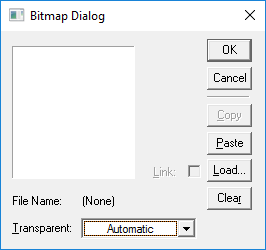
The following procedure explains how to select an image to display as part of a SetPoint Button tool. When you associate a SetPoint Button Tool with an image, the image displays somewhere within the SetPoint Button Tool; exactly where depends on your design. Use the Layout property to specify the button's text alignment relative to the image within the button. If the SetPoint Button Tool is not configured to show text, the bitmap is centered within the button.
Important: Because the image file types acceptable for use with a SetPoint Button Tool are not scalable, make sure that the image you associate with the button fits within the SetPoint Button Tool. If an image is too large for the default button size, you must resize the button to accommodate the image or (re)load a smaller version of the image.
To Select an Image
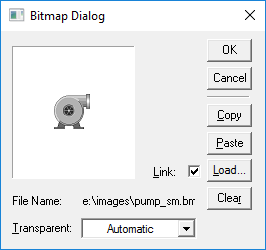
Note: A linked image is accessed from the file system each time the screen is opened. To link, all users of the screen must have read access to the image's storage location. If the source is unavailable, a "Not Found" message appears in its place on the screen. Linking can reduce the size of the CygNet Studio file. The amount of reduction depends upon the number of images on TheView and the size of the images. With just a few images the difference might be slight, so you might want to do a comparison before selecting one method over the other. Embedding the image is the recommended method for most screens. When the image is embedded, it is saved with the screen. Embedding the image in the TheView makes the file self-contained.

|
|
|

